 Development Environment
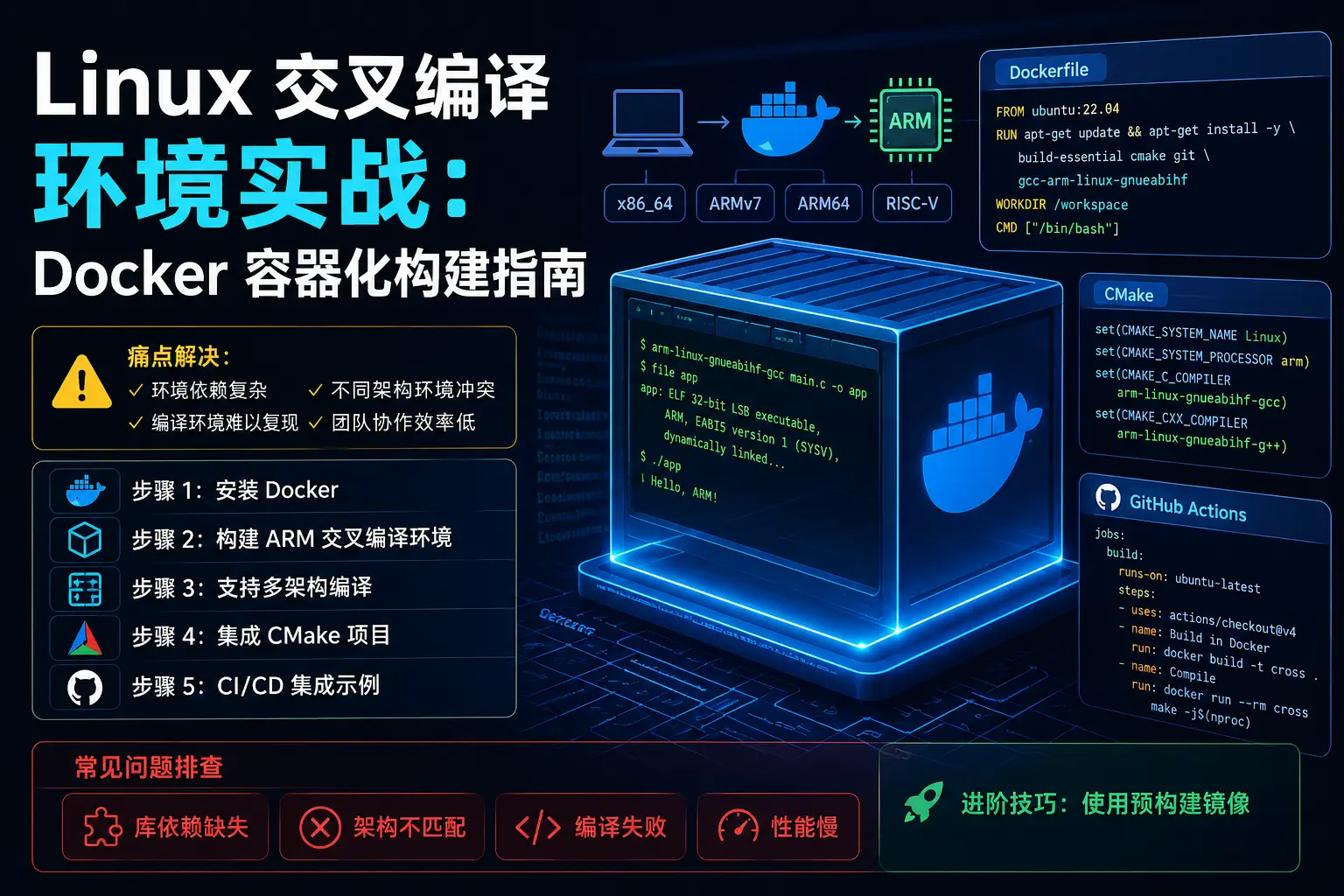
 Linux Cross-Compilation in Practice: Docker Containerized Build Guide
Embedded developers have all encountered this awkward situation: code compiles fine on the dev machine, but errors appear everywhere when switching environments. Dependency library versions are wrong, toolchains are missing, environment variables are chaotic… Today we’ll talk about how to use Docker to “package” the cross-compilation environment and take it anywhere, making the build process truly reproducible.
Why Do You Need a Containerized Cross-Compilation Environment?
Pain points of traditional cross-compilation:
-
Tedious environment configuration: you have to reconfigure the toolchain every time you reinstall the system
-
Inconsistent versions: team members using different compiler versions causes strange issues
-
Multi-architecture support is troublesome: developing for ARM, MIPS, and RISC-V simultaneously requires switching between multiple environments
-
CI/CD integration is difficult: automated build environments are hard to standardize
Docker containers perfectly solve these problems: configure once, run anywhere.
What Do You Need?
| Item | Model/Spec | Price |
|---|---|---|
| Development Host | Linux/Windows/Mac | ¥0 (already have) |
| Docker Engine | 20.10+ | ¥0 (open source) |
| Cross-compilation Toolchain | gcc-arm-linux-gnueabihf, etc. | ¥0 (open source) |
| Disk Space | Recommended 10GB+ | ¥0 |
| Total | ¥0 |
Yes, you read that right, the complete solution is zero cost!
Step 1: Install Docker
Ubuntu/Debian System
# Uninstall old versions (if any)
sudo apt-get remove docker docker-engine docker.io containerd runc

# Install dependencies
sudo apt-get update
sudo apt-get install ca-certificates curl gnupg lsb-release

# Add Docker official GPG key
curl -fsSL https://download.docker.com/linux/ubuntu/gpg | sudo gpg --dearmor -o /usr/share/keyrings/docker-archive-keyring.gpg

# Set up stable repository
echo "deb [arch=$(dpkg --print-architecture) signed-by=/usr/share/keyrings/docker-archive-keyring.gpg] https://download.docker.com/linux/ubuntu $(lsb_release -cs) stable" | sudo tee /etc/apt/sources.list.d/docker.list > /dev/null

# Install Docker Engine
sudo apt-get update
sudo apt-get install docker-ce docker-ce-cli containerd.io

# Verify installation
docker --version
Add Current User to Docker Group (to Avoid sudo Every Time)
sudo usermod -aG docker $USER
# Log out and log back in for changes to take effect
Notes: ⚠️ If you’re on a corporate intranet, you may need to configure a Docker mirror accelerator. Edit /etc/docker/daemon.json:
{
  "registry-mirrors": [
    "https://docker.mirrors.ustc.edu.cn",
    "https://registry.cn-hangzhou.aliyuncs.com"
  ]
}
Step 2: Build ARM Cross-Compilation Environment
We’ll create a compilation environment targeting ARM Cortex-A series (like Raspberry Pi, i.MX6).
Create Dockerfile
Create Dockerfile.arm in the project root directory:
FROM ubuntu:22.04

# Avoid interactive prompts
ENV DEBIAN_FRONTEND=noninteractive

# Install basic tools
RUN apt-get update && apt-get install -y \
    build-essential \
    gcc-arm-linux-gnueabihf \
    g++-arm-linux-gnueabihf \
    binutils-arm-linux-gnueabihf \
    libc6-dev-armhf-cross \
    git \
    cmake \
    make \
    wget \
    vim \
    && rm -rf /var/lib/apt/lists/*

# Set cross-compilation environment variables
ENV CROSS_COMPILE=arm-linux-gnueabihf-
ENV ARCH=arm
ENV CC=${CROSS_COMPILE}gcc
ENV CXX=${CROSS_COMPILE}g++

# Create working directory
WORKDIR /workspace

# Default command
CMD ["/bin/bash"]
Build Image
docker build -f Dockerfile.arm -t cross-compile-arm:latest .Use Container to Compile
# Mount project directory and enter container
docker run -it --rm \
    -v $(pwd):/workspace \
    cross-compile-arm:latest \
    /bin/bash

# Compile inside container
cd /workspace
arm-linux-gnueabihf-gcc -o hello hello.c
How it works: By using -v $(pwd):/workspace to mount the host’s current directory into the container, compilation artifacts will appear directly on the host, convenient for subsequent flashing or testing.
Step 3: Support Multi-Architecture Compilation
In actual projects, we may need to support multiple architectures simultaneously. Create a multi-architecture Docker image:
Create Multi-Architecture Dockerfile
FROM ubuntu:22.04

ENV DEBIAN_FRONTEND=noninteractive

# Install multi-architecture cross-compilation toolchains
RUN apt-get update && apt-get install -y \
    build-essential \
    # ARM 32-bit
    gcc-arm-linux-gnueabihf \
    g++-arm-linux-gnueabihf \
    # ARM 64-bit
    gcc-aarch64-linux-gnu \
    g++-aarch64-linux-gnu \
    # MIPS
    gcc-mips-linux-gnu \
    g++-mips-linux-gnu \
    # RISC-V
    gcc-riscv64-linux-gnu \
    g++-riscv64-linux-gnu \
    # Common tools
    binutils-multiarch \
    git \
    cmake \
    make \
    && rm -rf /var/lib/apt/lists/*

# Create compilation script
RUN echo '#!/bin/bash' > /usr/local/bin/cross-compile.sh && \
    echo 'ARCH=$1' >> /usr/local/bin/cross-compile.sh && \
    echo 'shift' >> /usr/local/bin/cross-compile.sh && \
    echo 'case $ARCH in' >> /usr/local/bin/cross-compile.sh && \
    echo '  arm) export CROSS_COMPILE=arm-linux-gnueabihf- ;;' >> /usr/local/bin/cross-compile.sh && \
    echo '  arm64) export CROSS_COMPILE=aarch64-linux-gnu- ;;' >> /usr/local/bin/cross-compile.sh && \
    echo '  mips) export CROSS_COMPILE=mips-linux-gnu- ;;' >> /usr/local/bin/cross-compile.sh && \
    echo '  riscv64) export CROSS_COMPILE=riscv64-linux-gnu- ;;' >> /usr/local/bin/cross-compile.sh && \
    echo '  *) echo "Unsupported arch: $ARCH"; exit 1 ;;' >> /usr/local/bin/cross-compile.sh && \
    echo 'esac' >> /usr/local/bin/cross-compile.sh && \
    echo 'exec ${CROSS_COMPILE}gcc "$@"' >> /usr/local/bin/cross-compile.sh && \
    chmod +x /usr/local/bin/cross-compile.sh

WORKDIR /workspace
CMD ["/bin/bash"]
Build and Use
# Build multi-architecture image
docker build -f Dockerfile.multiarch -t cross-compile-multi:latest .

# Compile ARM version
docker run -it --rm -v $(pwd):/workspace cross-compile-multi:latest \
    cross-compile.sh arm -o hello_arm hello.c

# Compile ARM64 version
docker run -it --rm -v $(pwd):/workspace cross-compile-multi:latest \
    cross-compile.sh arm64 -o hello_arm64 hello.c

# Compile RISC-V version
docker run -it --rm -v $(pwd):/workspace cross-compile-multi:latest \
    cross-compile.sh riscv64 -o hello_riscv64 hello.c
Step 4: Integrate with CMake Projects
For projects using CMake, you need to configure a toolchain file.
Create CMake Toolchain File toolchain-arm.cmake
set(CMAKE_SYSTEM_NAME Linux)
set(CMAKE_SYSTEM_PROCESSOR arm)

set(CROSS_COMPILE arm-linux-gnueabihf-)

set(CMAKE_C_COMPILER ${CROSS_COMPILE}gcc)
set(CMAKE_CXX_COMPILER ${CROSS_COMPILE}g++)

set(CMAKE_FIND_ROOT_PATH_MODE_PROGRAM NEVER)
set(CMAKE_FIND_ROOT_PATH_MODE_LIBRARY ONLY)
set(CMAKE_FIND_ROOT_PATH_MODE_INCLUDE ONLY)
Compile CMake Project Inside Docker
docker run -it --rm -v $(pwd):/workspace cross-compile-arm:latest \
    /bin/bash -c "
    mkdir -p build && cd build && \
    cmake -DCMAKE_TOOLCHAIN_FILE=../toolchain-arm.cmake .. && \
    make -j$(nproc)
    "
Step 5: CI/CD Integration Example
Use in .gitlab-ci.yml or GitHub Actions:
GitHub Actions Example
name: Cross Compile

on: [push]

jobs:
  build-arm:
    runs-on: ubuntu-latest
    container: cross-compile-arm:latest
    steps:
      - uses: actions/checkout@v3

      - name: Build
        run: |
          arm-linux-gnueabihf-gcc -o firmware main.c

      - name: Upload artifact
        uses: actions/upload-artifact@v3
        with:
          name: firmware-arm
          path: firmware
Common Problem Troubleshooting
Problem 1: Container can’t access host network
-
Cause: Docker default network isolation
-
Solution: Add
--network hostparameter (development environment only):
docker run -it --rm --network host -v $(pwd):/workspace cross-compile-arm:latestProblem 2: Compiled program won’t run
-
Cause: Cross-compiled programs need to run on the target architecture
-
Solution: Use QEMU user-mode emulation to test:
# Install QEMU
sudo apt-get install qemu-user-static

# Run ARM program
qemu-arm-static ./hello_arm
Problem 3: Chinese characters display as garbled text inside container
-
Cause: Container lacks Chinese fonts/locale
-
Solution: Add to Dockerfile:
RUN apt-get install -y locales && \
  locale-gen zh_CN.UTF-8 && \
  update-locale LANG=zh_CN.UTF-8
ENV LANG=zh_CN.UTF-8
Problem 4: Image size is too large (over 2GB)
-
Cause: Installed too many unnecessary packages
-
Solution: Use multi-stage builds, only keep compilation artifacts:
# Build stage
FROM ubuntu:22.04 AS builder
RUN apt-get install -y gcc-arm-linux-gnueabihf make

# Runtime stage (only keep necessary tools)
FROM ubuntu:22.04
COPY --from=builder /usr/bin/arm-linux-gnueabihf-gcc /usr/bin/
Advanced Tips: Using Pre-built Images
If you don’t want to build it yourself, you can use community-maintained images:
# ARM cross-compilation
docker pull multiarch/crossbuild

# Usage example
docker run --rm -v $(pwd):/workspace -w /workspace multiarch/crossbuild \
    make ARCH=arm CROSS_COMPILE=arm-linux-gnueabihf-
Summary
Core advantages of containerizing cross-compilation environments with Docker:
-
Reproducible environment—Dockerfile is version-controlled, any machine can restore the compilation environment with one click
-
Multi-architecture support—one Dockerfile supports ARM, ARM64, MIPS, RISC-V cross-compilation simultaneously
-
Team consistency—all members use exactly the same toolchain versions, avoiding “it compiles on my machine” issues
-
Seamless CI/CD integration—container images are directly used in GitHub Actions / GitLab CI, zero-configuration automated builds
It’s recommended to include the project’s Dockerfile in version control, maintained alongside the code. This way, no matter how much time passes, as long as Docker is available, the compilation environment can be restored with one click.
Hope this blog article is helpful to you!
Related resources: