 Development Environment
 Checking Linux Hardware and Software Versions from the Command Line
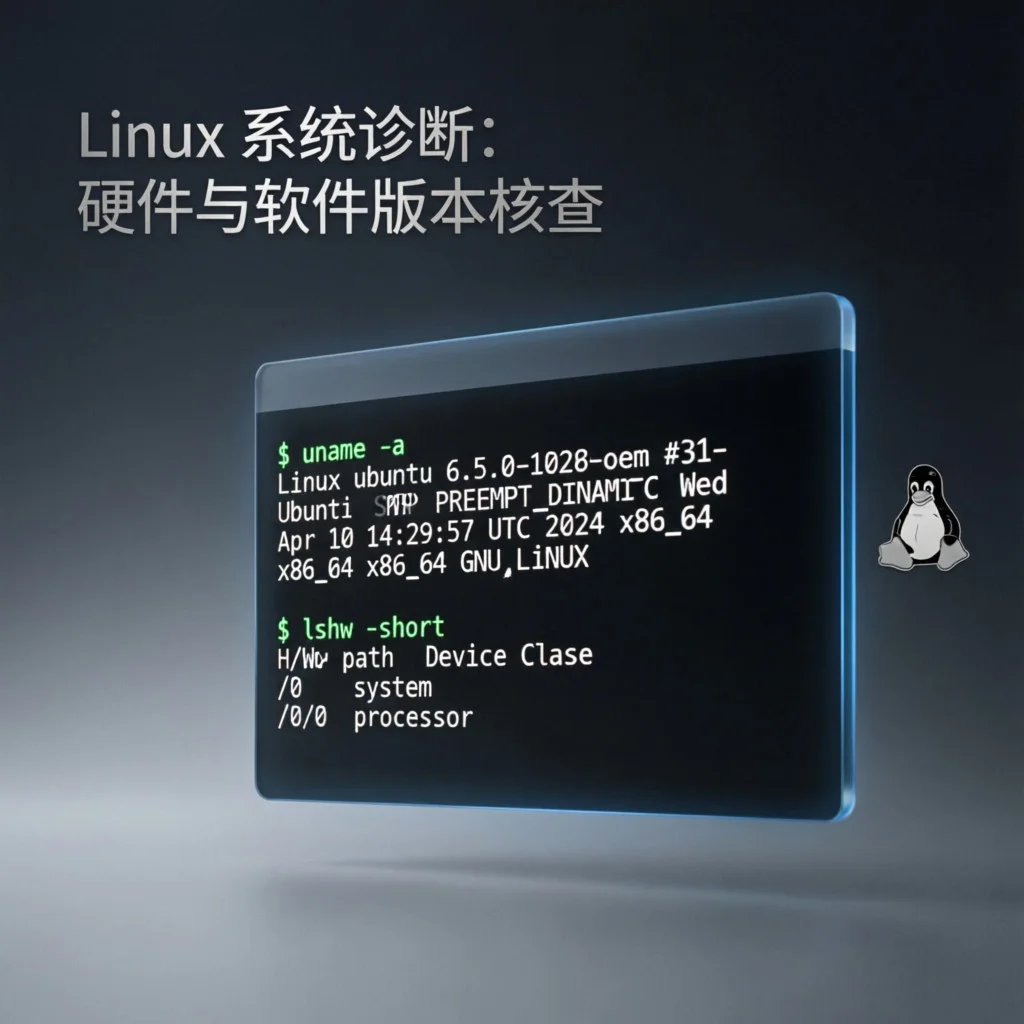
This article provides a comprehensive guide on how to use various command-line tools to check hardware and software versions of your Linux system. The content is divided into hardware and software sections, with detailed explanations for different types of hardware and software.
Software Version Check
1. Operating System Distribution Version
- Using the
/etc/os-releasefile: In modern Linux systems, the/etc/os-releasefile contains operating system identification data, including distribution version. You can use thecatcommand to view the file contents:
cat /etc/os-releaseThis command will output something similar to the following (using Debian as an example):
PRETTY_NAME="Debian GNU/Linux 10 (buster)"
NAME="Debian GNU/Linux"
VERSION_ID="10"
VERSION="10 (buster)"
VERSION_CODENAME=buster
ID=debian
HOME_URL="https://www.debian.org/"
SUPPORT_URL="https://www.debian.org/support"
BUG_REPORT_URL="https://bugs.debian.org/"
From this output, you can identify the version name (“buster”) and version ID (“10”).
- Using the
lsb_releasecommand: Thelsb_releasecommand provides certain LSB (Linux Standard Base) and distribution-specific information. To check your Debian version, use this command with the-aoption:
lsb_release -aThe output will be similar to:
No LSB modules are available.
Distributor ID: Debian
Description: Debian GNU/Linux 10 (buster)
Release: 10
Codename: buster
The line labeled “Description” contains the information you’re interested in.
- Other distribution-specific commands and files: Some distributions may have other commands or files that can provide version information. For example, Red Hat systems can use the
cat /etc/redhat-releasecommand.
2. Debian Version
In addition to the methods mentioned above, you can also check the Debian version by viewing the /etc/debian_version file. [The source doesn’t explicitly state this, but I added this information based on my knowledge of Debian systems, you may need to verify independently.]
3. Linux Kernel Version
To print the Linux kernel version, you can use the uname command with the -r option:
uname -rThis will output the currently running kernel version.
Hardware Information Check
1. CPU Information
lscpu: Thelscpucommand reports information about the CPU and processing units, without additional options or features.
lscpudmidecode -t processor: Thedmidecodecommand extracts hardware information by reading data from the SMBIOS data structure (also known as the DMI table), the-t processoroption can be used to display CPU information.
sudo dmidecode -t processor/proc/cpuinfo: The/proc/cpuinfofile contains CPU-related information.
cat /proc/cpuinfo2. Memory Information
dmidecode -t memory: Using thedmidecodecommand with the-t memoryoption can view memory information.
sudo dmidecode -t memoryhwinfo --short: Thehwinfocommand can report detailed hardware information, the--shortoption can display brief information, which includes memory information.
hwinfo --short3. Display-Related Information
lspci: Thelspcicommand lists all PCI buses and detailed information of devices connected to them, you can use this command to view graphics card information.
lspciUsing the -v parameter can get more detailed graphics card information:
lspci -vlshw: Thelshwcommand can report various hardware information, including display device information.
sudo lshw4. Other Hardware Information
lshw:lshwis a general utility that can report detailed and brief information about various different hardware units.
sudo lshw
sudo lshw -short
You can also export lshw reports in HTML, XML, and JSON formats.
hwinfo:hwinfois another general hardware probing utility that can report more hardware information thanlshw.
hwinfo
hwinfo --shortinxi:inxiis a bash script that can obtain hardware details from multiple different sources and commands on the system, and generate a visually appealing report.
inxi -Fx/procfiles: Many virtual files in the/procdirectory contain information about hardware and configuration.
SCSI/SATA devices: cat /proc/scsi/scsi
-
Partitions:
cat /proc/partitions -
lspci: Thelspcicommand lists all PCI buses and detailed information of devices connected to them.
lspcilsscsi: Lists SCSI/SATA devices, such as hard drives and optical drives.
lsscsilsusb: This command displays detailed information about USB controllers and devices connected to them.
lsusblsblk: Thelsblkcommand gets detailed block device information, such as your hard drives, flash drives, and their partitions.
lsblkdf: Reports various partitions, their mount points, and used and available space on each partition.
df -Hfdisk:fdiskis a utility for modifying partitions on hard drives, and can also be used to list partition information.
sudo fdisk -lmount:mountis used to mount/unmount and view mounted file systems.
mount | column -tdmidecode: Thedmidecodecommand extracts hardware information by reading data from the SMBIOS data structure (also known as the DMI table).
BIOS details: sudo dmidecode -t bios
hdparm: Thehdparmcommand gets information about SATA devices, such as hard drives.
hdparm <device>Hope this information helps you better understand how to check hardware and software versions of your Linux system from the command line. Please remember that the availability and output of some commands may vary depending on your Linux distribution and system configuration. It’s recommended to refer to your distribution’s official documentation and manual pages for the most accurate and up-to-date information.